
Features
What you can show in your gym
Manage classes, offers and club news across your gym screens.
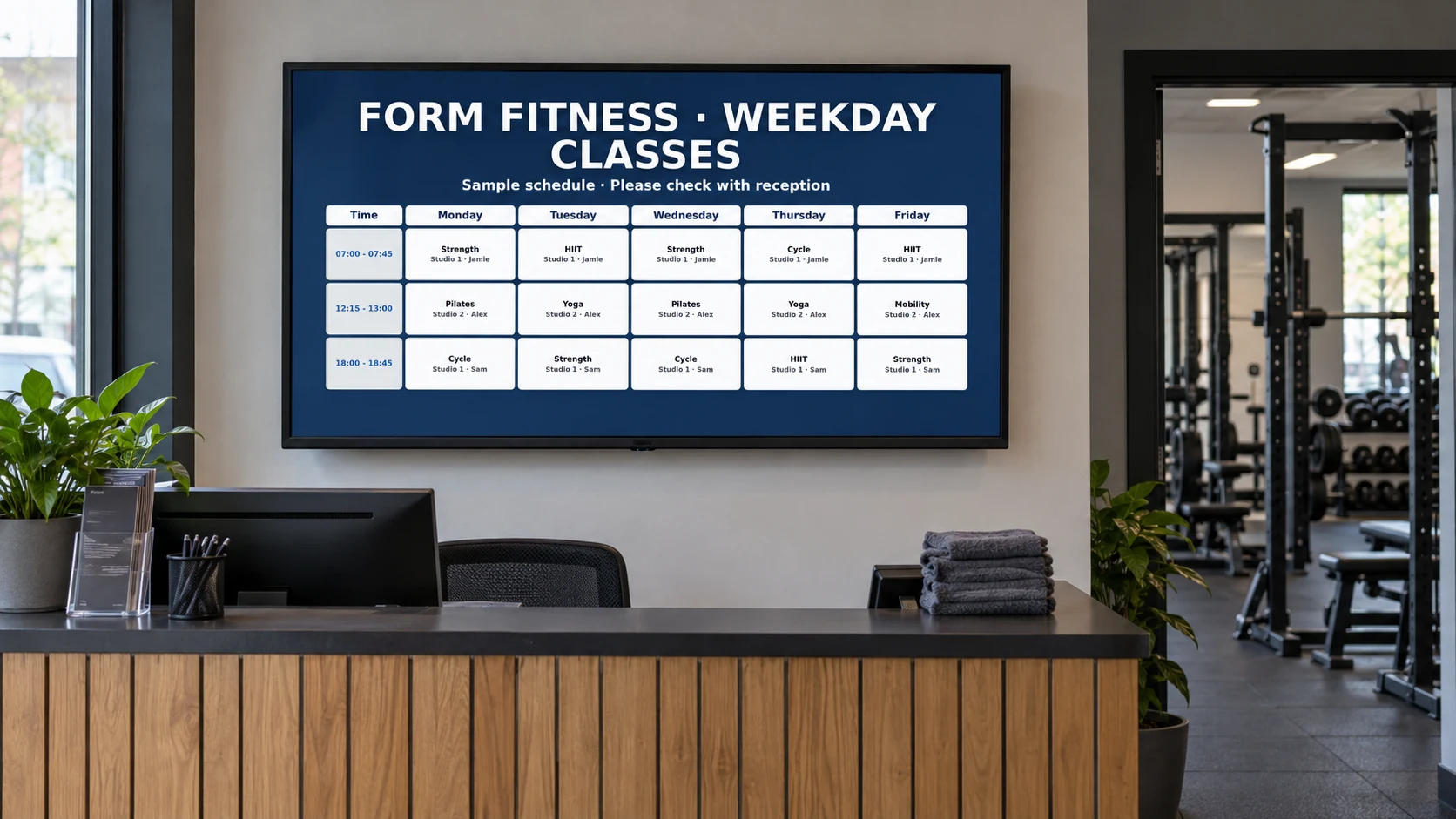
EXAMPLES ON SCREEN
See what your screens can show.
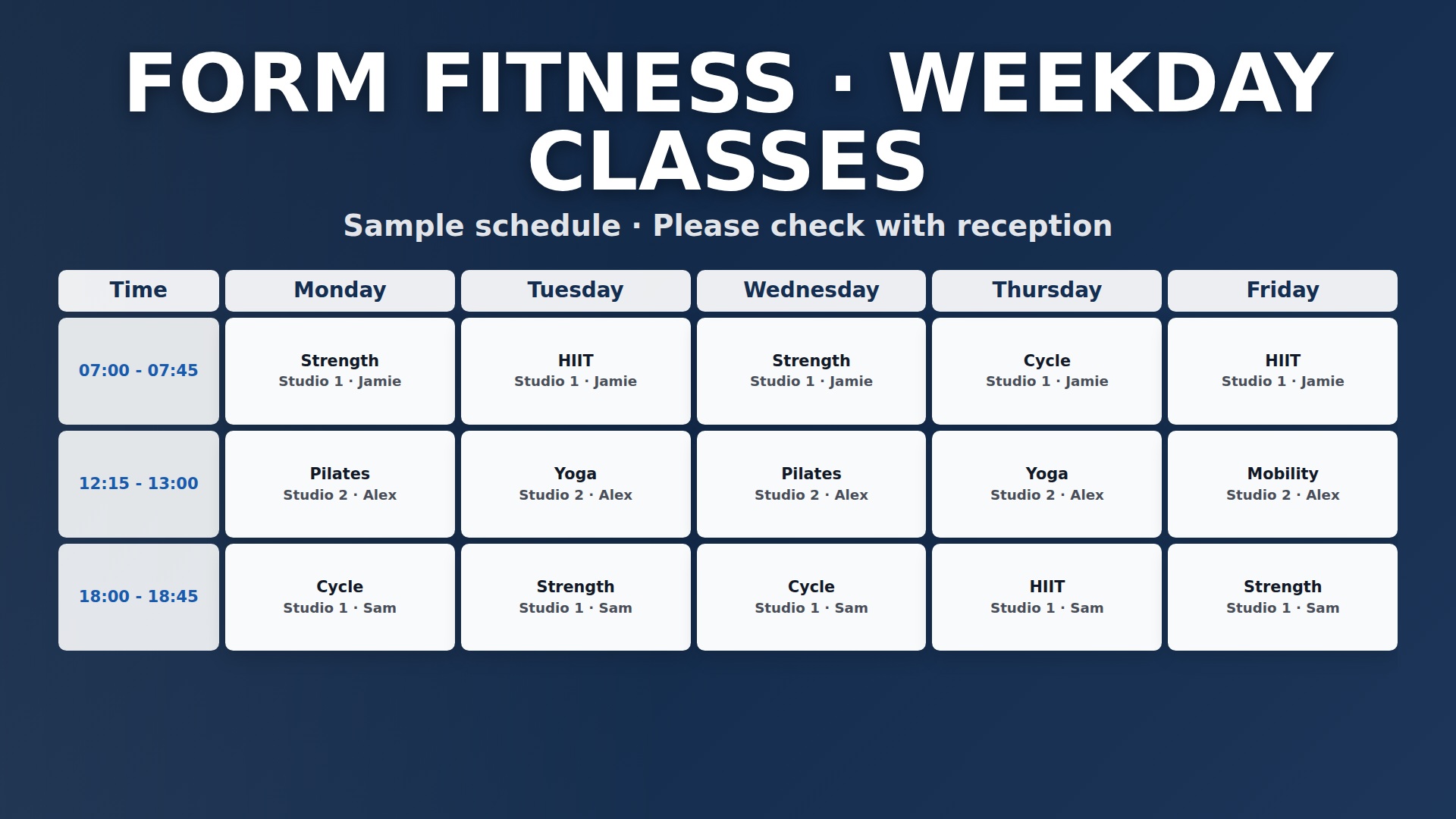
Fill your classes
Help members find today’s classes, instructors and rooms so they can plan their next workout.
More detailLess detail
Show today’s sessions, instructors and rooms. Make the next workout easy to find.
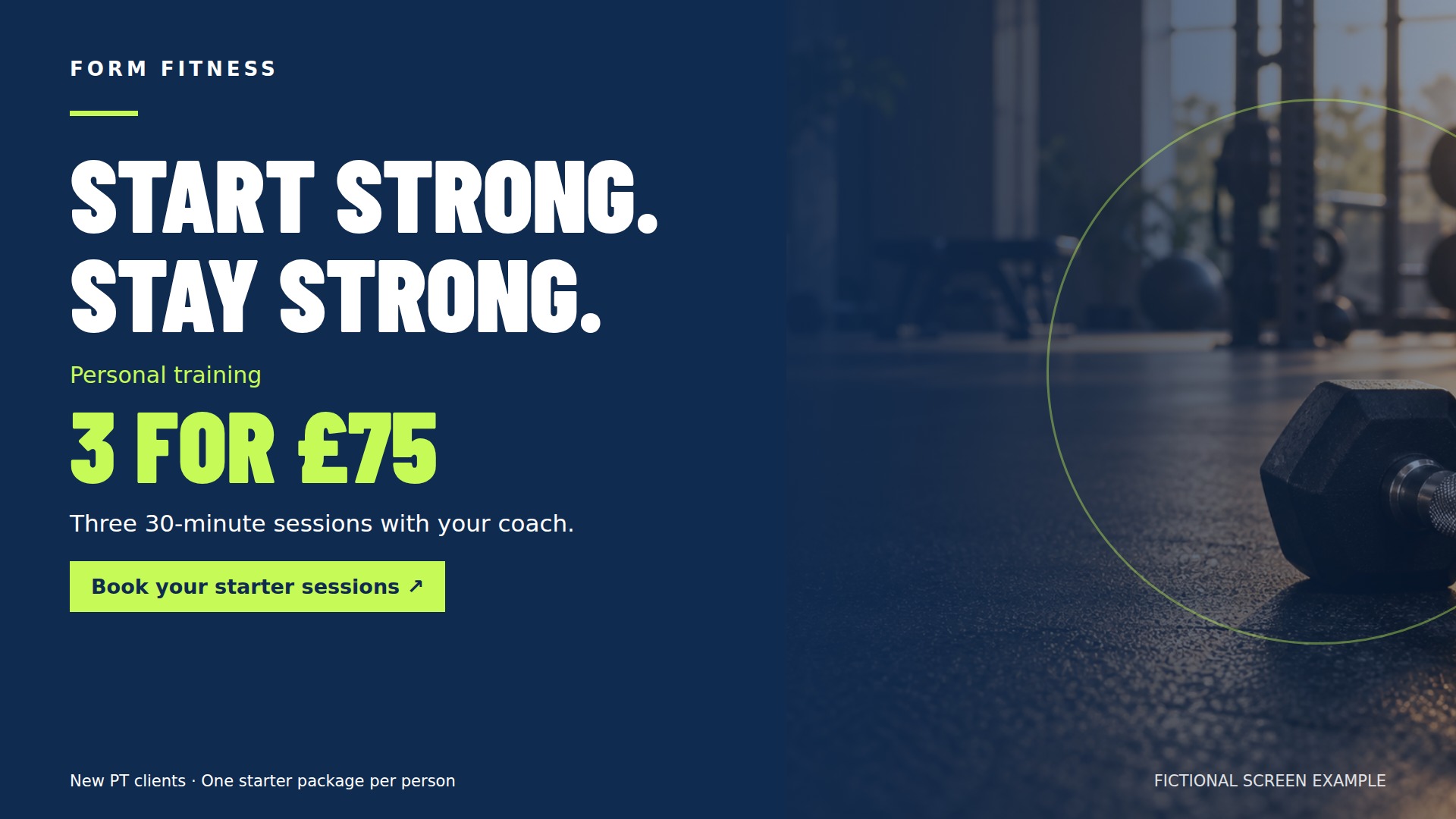
Put your coaches in the spotlight
Introduce your trainers and show members the personal training support available around your gym.
More detailLess detail
Introduce your trainers and promote the support members can get from personal training.
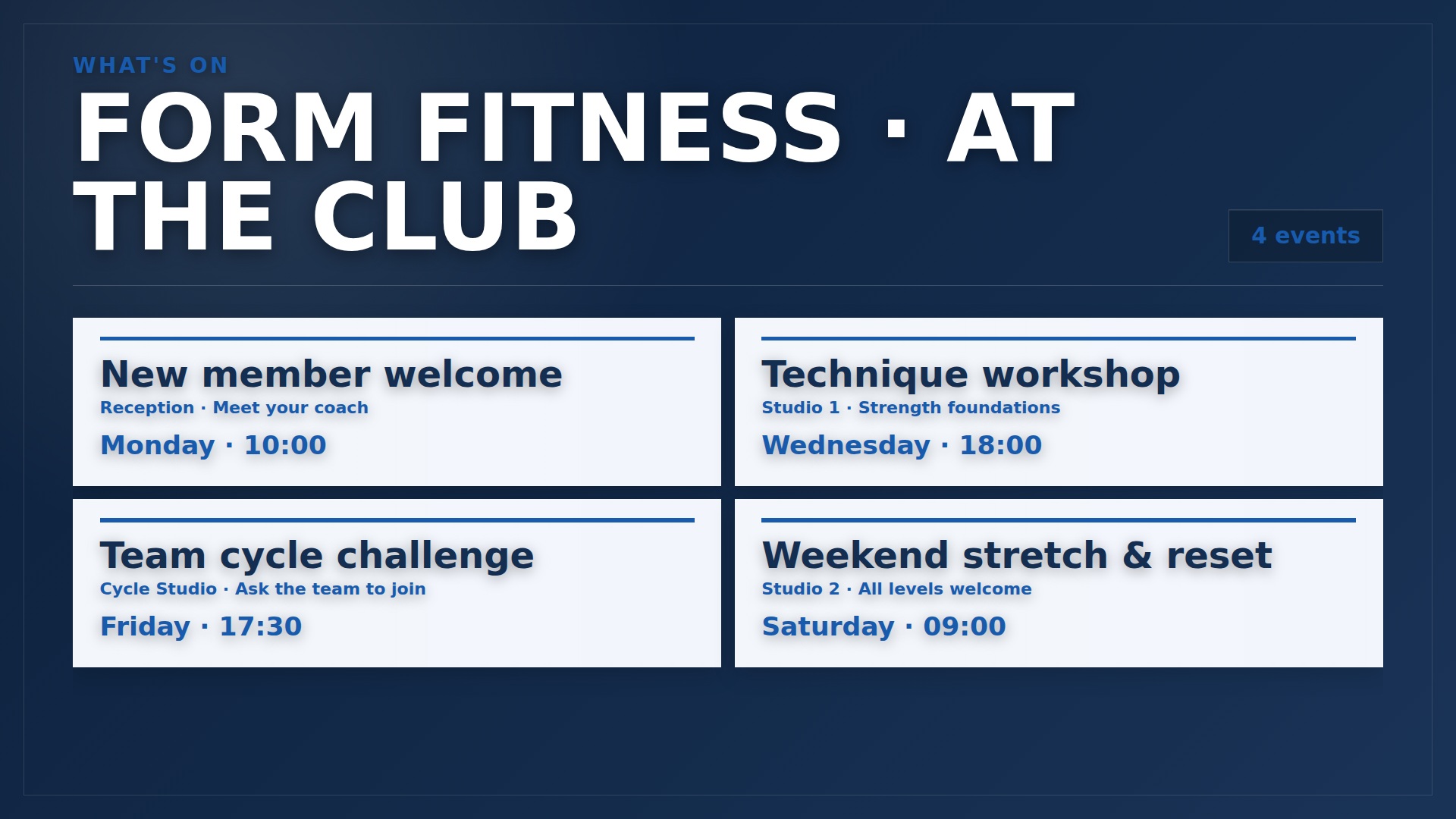
Celebrate your community
Give achievements, challenges and club news a visible home that encourages members to get involved.
More detailLess detail
Share achievements, upcoming challenges and gym news that give people a reason to get involved.
Keep the day running smoothly
Keep class changes and important notices current across the building without replacing printed posters.
More detailLess detail
Update class changes and important notices without replacing posters around the building.
Make your café work harder
Put drinks, snacks, prices and cafe offers where members can see them between workouts.
More detailLess detail
Show drinks, snacks, prices and offers clearly. Give members a reason to stay a little longer.
Plan your week ahead
Schedule morning classes, evening promotions and weekend events so each gets its moment on screen.
More detailLess detail
Give morning classes, evening offers and weekend events their own moment on screen.
Keep your look consistent
Use your own colours, logo, photography and videos for a recognisable look throughout your gym.
More detailLess detail
Bring your colours, logo, photos and videos together for a gym that feels like your own.
Stay in control wherever you are
Update your screens from a phone, tablet or computer and tailor messages to different gym areas.
More detailLess detail
Make routine changes from a phone, tablet or computer. Give different areas different messages.
Keep an eye on your screens
Review recent screen check-ins and choose available email alerts to help identify players needing attention.
More detailLess detail
See which screens have checked in recently and choose whether you want email alerts when one stops checking in.
Bring class and campaign artwork into Media
Upload your gym photos, videos and campaign documents, then review imported pages before building playlists.
More detailLess detail
Upload gym photographs, campaign graphics and MP4 videos into your Media Library. A PDF or PowerPoint can be imported as ordered still images for a class campaign or open day; review the converted pages before building a playlist or folder slideshow. Presentation animations, transitions and audio do not carry into those images.
Plan class campaigns and remove expired offers
Give reception, studios and cafe screens their own schedules, with expiry dates for temporary campaigns.
More detailLess detail
Arrange content in the order members should see it and choose each item’s display duration. Assign different playlists to reception, studios and the cafe, then schedule changes around your opening hours or weekly programme. Give a trial-membership campaign or event graphic an expiry date so outdated artwork stops being selected after the promotion ends.
Layer club information onto screen content
Add reusable branding, QR links, short notices and practical information without covering important class details.
More detailLess detail
Create reusable text, logo, date/time and QR code overlays for selected playlist items. A ticker can carry short club notices while Special pages add a clock, challenge countdown or weather display. Preview the result from a member’s viewing position so overlays do not obscure class details. Live weather and web content require internet access.
Monitor reception, studios and connected players
Check player connections across reception and studios, with clear guidance on supported devices and connectivity.
More detailLess detail
Use recognisable screen names and review recent check-ins to find a player that needs attention. Configure available email alerts, then check the device and connection if one stops reporting. Android and compatible browsers are supported. Cached media can continue on suitable configured players; new updates and third-party streams depend on connectivity.
Send short messages to the right gym area
Let staff send a short room change or service notice to the right gym screen.
More detailLess detail
Set up a named message destination for reception or a studio and let staff send a temporary room change or service notice. Messages queue for the player’s next check-in, briefly replace the normal display and return to playlist playback afterwards. Optional chimes depend on working speakers and browser permissions. Keep routine schedules in your playlist.
Manage local sponsor artwork without dashboard access
Request sponsor graphics through private upload links, review submissions yourself and retain control of publication.
More detailLess detail
If advertiser tools are enabled, keep sponsor contacts, agreed rates and payment terms with your screen administration. Send a private, single-use link requesting one JPG, PNG or WebP graphic. Review the submission in Media and choose its playlist yourself. The sponsor receives no dashboard access; advertiser invoicing and payment collection remain your responsibility.